Link an employee to a Mod AI user
Linking connects an employee record in Mod AI to a user account (a Mod AI login). The link is what lets people in approval policies actually log in and act on approvals.
Why linking matters
When an approval policy assigns a step to a group of employees, those employees need linked user accounts to act.
Without a link:
- The employee appears in groups and policies.
- But they cannot log in or act on pending approvals.
With a link:
- The employee's approval assignments connect to their Mod AI login.
- They receive notifications and can approve or reject directly.
How linking happens
Linking is automatic during the invitation flow, not a separate "link" action. The flow is:
- An admin invites a user from Organization → Members → Invite user (Settings → Organization → Members → click the Invite user button at the top-right).
- The admin enters the new user's email address and assigns a role.
- Mod AI sends an invitation email.
- When the invitee accepts and creates their account (see Accepting an Invitation), Mod AI matches their email against employee records in Mod AI. If the email matches an employee, the user account and the employee record are linked automatically.
So the article's central question — "how do I link this employee to a user?" — is really "how do I invite a user with the same email as this employee?" The match-and-link step happens behind the scenes when the invitation is accepted.
Check whether an employee is linked
- Click your avatar in the top-right corner of any page, then click Settings in the overlay menu.
- In the left-hand Settings nav, under the Company tier, click People. The People list page loads.
- Find the employee. The Status column on each row shows either Active (linked + active user), No Account (no linked user), Pending (invited, not yet accepted), or Inactive (suspended).
- Click the employee's row to open the detail page. The Roles & access section in the main content area shows three fields: Platform access, Company role, and Linked user. The Linked user field shows the linked email when one exists, or stays blank for No Account employees.
Get an unlinked employee linked
If an employee shows No Account and they need to act on approvals, confirm the employee record exists with the right email address, then invite them:
- Click your avatar → Settings in the menu.
- In the left-hand Settings nav, under the Organization tier, click Members. The Members page loads with three tabs: Active members, Pending invitations, Suspended.
- In the top-right of the page, click the Invite user button.
- In the dialog, enter the employee's email address (it must match the email on the employee record exactly) and pick a role.
- Click Send invitation. The user receives the invitation email; when they accept, their account is linked to the matching employee record automatically.
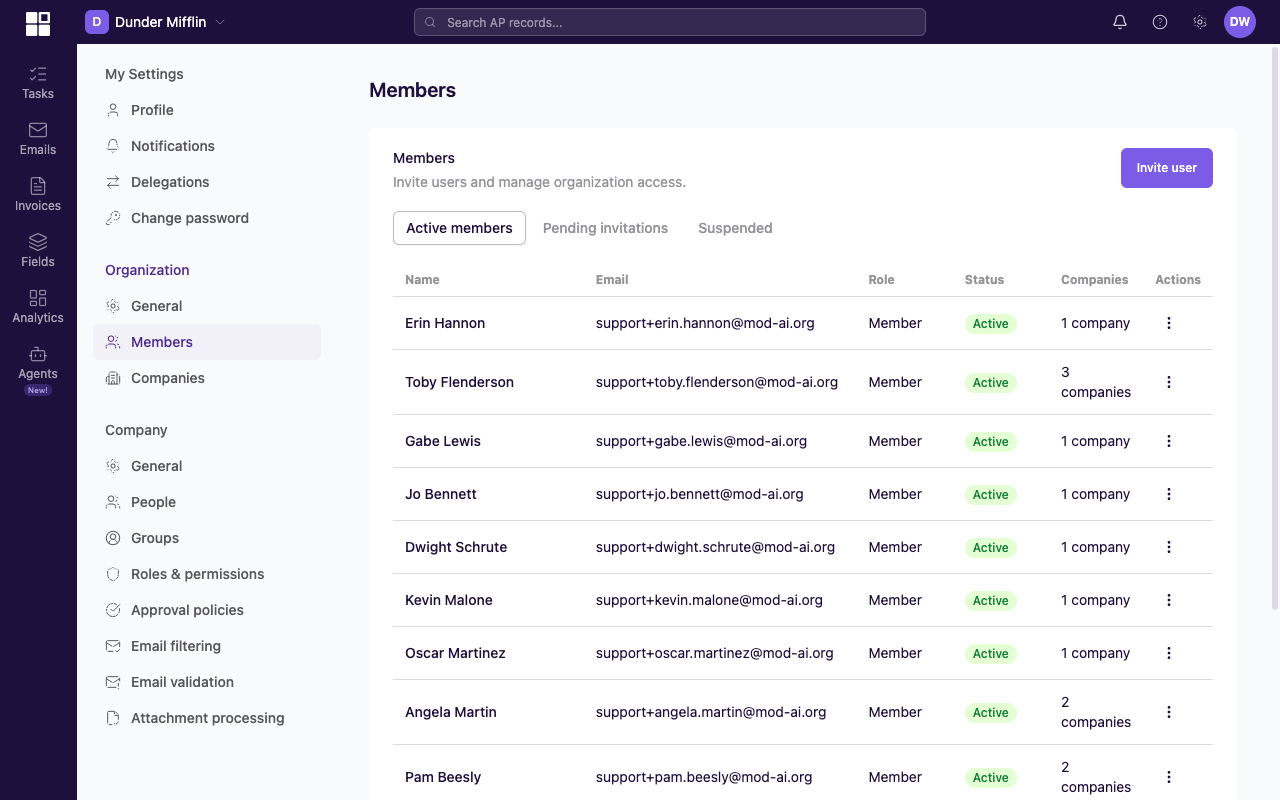
Members page under Settings > Organization, showing the Active members / Pending invitations / Suspended tabs, a member list, and an Invite user button at the top-right.
Reconcile links
If an employee's email or user account changes, the automatic link may break and the employee will switch to No Account in the People list. A company admin can edit the employee record or relink it to the right user account. If you cannot access those controls, contact support@usemod.ai for help reconciling the records.
Unlink
A company admin with employee-management access can archive employee records and manage user links from the employee detail page. To suspend platform access, use the member suspension controls under Settings → Organization → Members.
Every employee who participates in approvals needs a linked user account. Without a link, they get assigned approvals but cannot act on them, which stalls the flow.